
John Ternus presenting iPhone Duo Meme Generator
A full-body shot of John Ternus, a man in a dark long-sleeved shirt and jeans, standing on a white surface against a light grey background.
Create Your John Ternus presenting iPhone Duo Meme
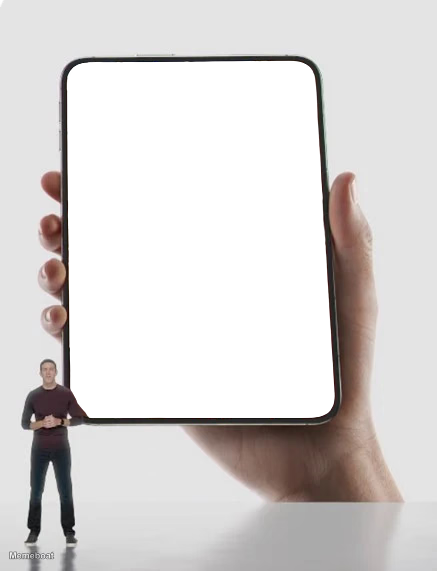
Blank John Ternus presenting iPhone Duo meme template
Download the blank John Ternus presenting iPhone Duo template to caption it yourself, or add your text right here in the editor above and download the finished meme.
John Ternus presenting iPhone Duo template facts
- Dimensions
- 437 × 571 px
- Format
- WEBP
- Text boxes
- 2
- Added
- 2026
About the John Ternus presenting iPhone Duo meme template
A full-body shot of John Ternus, a man in a dark long-sleeved shirt and jeans, standing on a white surface against a light grey background. To his right, a giant, black-screened foldable smartphone (iPhone Duo) is held by a disembodied hand.
Popular John Ternus presenting iPhone Duo caption ideas
Did they photoshop this person's hands to be extra long alien hands in order to hold this phone one handed?
Templates similar to John Ternus presenting iPhone Duo
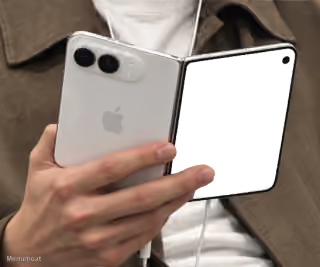





John Ternus presenting iPhone Duo meme FAQ
How do I make a John Ternus presenting iPhone Duo meme?
Scroll up to the John Ternus presenting iPhone Duo template, type your caption into the 2 text boxes in the editor above, adjust the font, size and color if you like, then click download. Your finished John Ternus presenting iPhone Duo meme is ready to share in seconds.
Can I use the John Ternus presenting iPhone Duo template for free?
Yes. The John Ternus presenting iPhone Duo template is completely free to use — no signup and no limits on how many memes you create or where you share them.
How do I download my John Ternus presenting iPhone Duo meme?
Click the download button under the editor once your John Ternus presenting iPhone Duo meme looks right. It saves straight to your device as a high-quality PNG or JPEG image.
How do I download the blank John Ternus presenting iPhone Duo template?
Use the "Download blank template" button in the blank John Ternus presenting iPhone Duo template section above to save the original, un-captioned image — handy if you'd rather caption it in another app or keep a copy.