GoGuardian Blocked Website Meme Generator
Create Your GoGuardian Blocked Website Meme
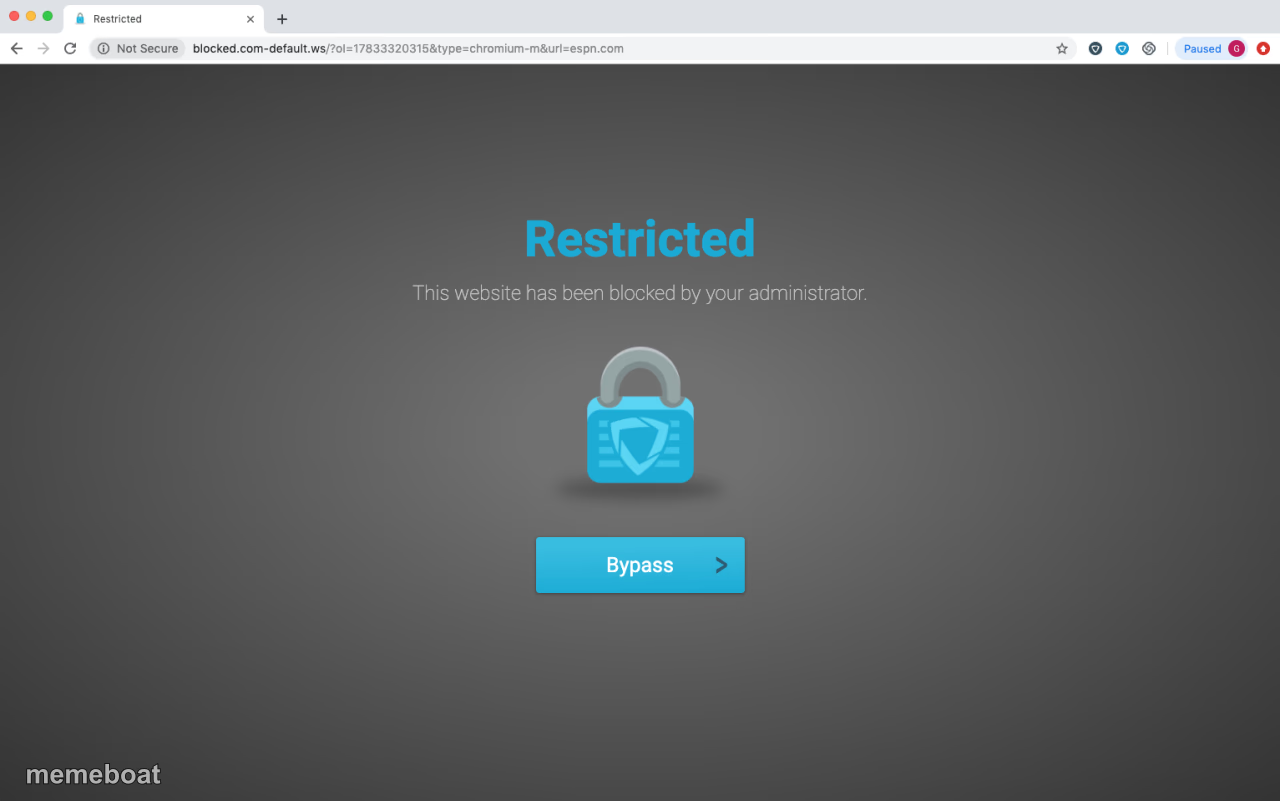
The dreaded 'Restricted' school Chromebook block screen with a padlock icon. Perfect for jokes about censorship and getting caught — caption and download free.
Blank GoGuardian Blocked Website meme template
Download the blank GoGuardian Blocked Website template to caption it yourself, or add your text right here in the editor above and download the finished meme.
When to use the GoGuardian Blocked Website meme
- Trying to check your phone on the school Chromebook during class
- Getting blocked from a website the second you actually needed it for research
- Office wifi shutting down anything remotely fun
- That split-second panic when a page won't load and you know why
GoGuardian Blocked Website template facts
- Featuring
- GoGuardian Restricted Page (GoGuardian)
- Dimensions
- 1280 × 801 px
- Format
- PNG
- Text boxes
- 1
- Added
- 2025
About the GoGuardian Blocked Website meme template
Every student who's ever used a school Chromebook knows this screen by heart: the ominous "This website has been blocked by your administrator" message with that judgmental padlock staring back at you. It's the digital equivalent of getting caught red-handed.
Use it for jokes about school internet censorship, getting shut down mid-scroll, workplace firewalls ruining your break, or literally anything you tried to access that the powers that be decided you couldn't have. The "Bypass" button that never actually works is just the cherry on top.
Popular GoGuardian Blocked Website caption ideas
POV: YOU FOUND NEW GAME WEBSITE: · HI THERE!
ME TRYING TO GOOGLE THE ANSWER DURING A TEST
WHEN YOU TRY TO WATCH ONE (1) VIDEO ON THE SCHOOL WIFI
THE SCHOOL CHROMEBOOK SEEING ME TYPE 'YOUTUBE.COM'
Templates similar to GoGuardian Blocked Website
![[[Hyperlink Blocked]]](https://ik.imagekit.io/memeboat/memes/hyperlink-blocked-59250-small)



GoGuardian Blocked Website meme FAQ
How do I make a GoGuardian Blocked Website meme?
Scroll up to the GoGuardian Blocked Website template, type your caption into the text box in the editor above, adjust the font, size and color if you like, then click download. Your finished GoGuardian Blocked Website meme is ready to share in seconds.
Can I use the GoGuardian Blocked Website template for free?
Yes. The GoGuardian Blocked Website template is completely free to use — no signup and no limits on how many memes you create or where you share them.
How do I download my GoGuardian Blocked Website meme?
Click the download button under the editor once your GoGuardian Blocked Website meme looks right. It saves straight to your device as a high-quality PNG or JPEG image.
How do I download the blank GoGuardian Blocked Website template?
Use the "Download blank template" button in the blank GoGuardian Blocked Website template section above to save the original, un-captioned image — handy if you'd rather caption it in another app or keep a copy.