Woody Before vs After Meme Generator
A side-by-side comparison of the animated character Woody from Disney Pixar's Toy Story.
Create Your Woody Before vs After Meme
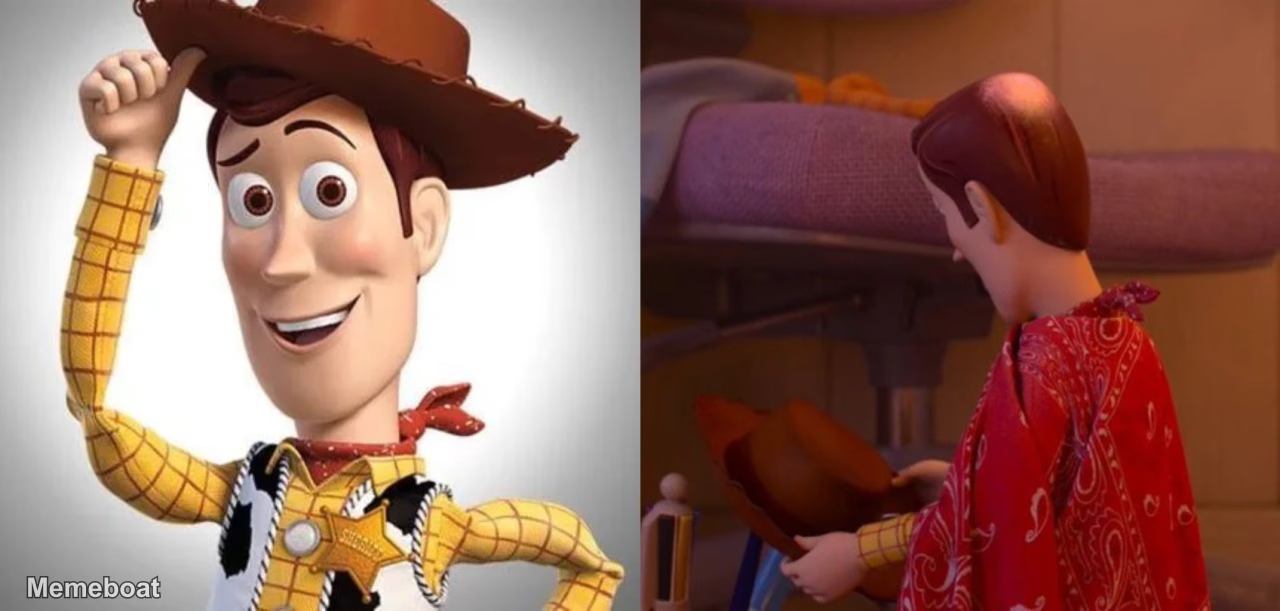
Blank Woody Before vs After meme template
Download the blank Woody Before vs After template to caption it yourself, or add your text right here in the editor above and download the finished meme.
Woody Before vs After template facts
- Dimensions
- 1280 × 611 px
- Format
- WEBP
- Text boxes
- 2
- Added
- 2026
About the Woody Before vs After meme template
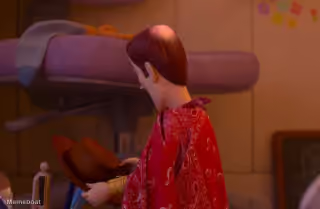
A side-by-side comparison of the animated character Woody from Disney Pixar's Toy Story. On the left, Woody appears in his classic, cheerful state, wearing his cowboy hat and smiling, as if tipping his hat. On the right, he is shown from behind, revealing a bald spot on the back of his head, looking downcast and holding his hat, illustrating a 'before and after' or 'wear and tear' transformation.
Popular Woody Before vs After caption ideas
After crypto
First year in crypto vs fifth year
First day in corporate America vs. 365 days later
Are you using AI to live or living to use AI? I'M GONNA SETUP OPENCLAW MUST KEEP ALL MY AGENTS RUNNING..
Templates similar to Woody Before vs After
Woody Before vs After meme FAQ
How do I make a Woody Before vs After meme?
Scroll up to the Woody Before vs After template, type your caption into the 2 text boxes in the editor above, adjust the font, size and color if you like, then click download. Your finished Woody Before vs After meme is ready to share in seconds.
Can I use the Woody Before vs After template for free?
Yes. The Woody Before vs After template is completely free to use — no signup and no limits on how many memes you create or where you share them.
How do I download my Woody Before vs After meme?
Click the download button under the editor once your Woody Before vs After meme looks right. It saves straight to your device as a high-quality PNG or JPEG image.
How do I download the blank Woody Before vs After template?
Use the "Download blank template" button in the blank Woody Before vs After template section above to save the original, un-captioned image — handy if you'd rather caption it in another app or keep a copy.