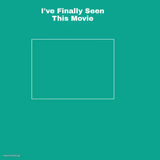
I've Finally Seen This Movie Meme Meme Generator
Create Your I've Finally Seen This Movie Meme Meme

Blank template for 'I've Finally Seen This Movie' — drop a scene screenshot in the box to share your late take. Caption and download free.
Blank I've Finally Seen This Movie Meme meme template
Download the blank I've Finally Seen This Movie Meme template to caption it yourself, or add your text right here in the editor above and download the finished meme.
When to use the I've Finally Seen This Movie Meme meme
- Finally watching a movie everyone told you to see 5 years ago
- Getting into a show right as the fandom has moved on
I've Finally Seen This Movie Meme template facts
- Dimensions
- 1172 × 682 px
- Format
- JPG
- Added
- 2026
About the I've Finally Seen This Movie Meme meme template
A simple teal template with a big empty box waiting for you to paste in a screenshot from whatever movie or show you just watched years after everyone else. It's the format for confessing you're extremely behind on pop culture and owning it.
Templates similar to I've Finally Seen This Movie Meme

I've Finally Seen This Movie Meme meme FAQ
How do I make a I've Finally Seen This Movie Meme meme?
Scroll up to the I've Finally Seen This Movie Meme template, add your own text boxes in the editor above and type your captions, adjust the font, size and color if you like, then click download. Your finished I've Finally Seen This Movie Meme meme is ready to share in seconds.
Can I use the I've Finally Seen This Movie Meme template for free?
Yes. The I've Finally Seen This Movie Meme template is completely free to use — no signup and no limits on how many memes you create or where you share them.
How do I download my I've Finally Seen This Movie Meme meme?
Click the download button under the editor once your I've Finally Seen This Movie Meme meme looks right. It saves straight to your device as a high-quality PNG or JPEG image.
How do I download the blank I've Finally Seen This Movie Meme template?
Use the "Download blank template" button in the blank I've Finally Seen This Movie Meme template section above to save the original, un-captioned image — handy if you'd rather caption it in another app or keep a copy.