Nobody Made A Meme Meme Generator
Create Your Nobody Made A Meme Meme
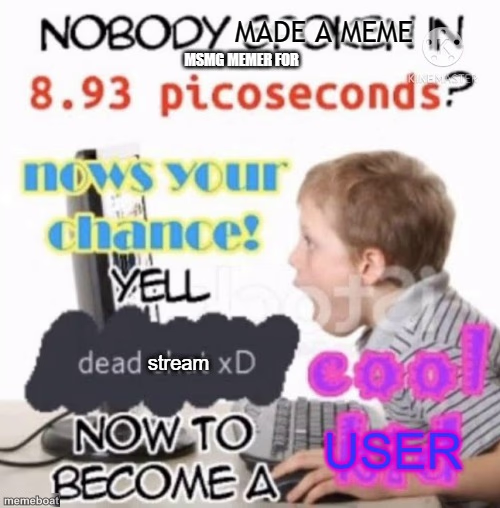
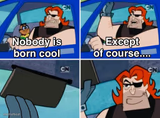
The 'nobody made a meme in X picoseconds, now's your chance' copypasta template with a kid yelling at his monitor. Caption it and download free.
Blank Nobody Made A Meme meme template
Download the blank Nobody Made A Meme template to caption it yourself, or add your text right here in the editor above and download the finished meme.
When to use the Nobody Made A Meme meme
- Bragging about being first to comment on a dead thread
- Reacting to genuinely nothing happening online
- Forum copypasta chain replies
- Screaming into the void of an empty Discord server
Nobody Made A Meme template facts
- Dimensions
- 500 × 508 px
- Format
- PNG
- Text boxes
- 2
- Added
- 2025
About the Nobody Made A Meme meme template
A little kid loses it at his computer screen, mouth wide open mid-yell, while a wall of jumbled copypasta text about picoseconds and becoming a 'cool user' crowds the frame. It's chaotic, unhinged, and somehow still legible enough to be funny.
Popular Nobody Made A Meme caption ideas
NOBODY COMMENTED · IN 8.93 PICOSECONDS
FIRST! · ...IN AN EMPTY SERVER
MY POST GOT 0 UPVOTES · TIME TO SCREAM ABOUT IT
Templates similar to Nobody Made A Meme

Nobody Made A Meme meme FAQ
How do I make a Nobody Made A Meme meme?
Scroll up to the Nobody Made A Meme template, type your caption into the 2 text boxes in the editor above, adjust the font, size and color if you like, then click download. Your finished Nobody Made A Meme meme is ready to share in seconds.
Can I use the Nobody Made A Meme template for free?
Yes. The Nobody Made A Meme template is completely free to use — no signup and no limits on how many memes you create or where you share them.
How do I download my Nobody Made A Meme meme?
Click the download button under the editor once your Nobody Made A Meme meme looks right. It saves straight to your device as a high-quality PNG or JPEG image.
How do I download the blank Nobody Made A Meme template?
Use the "Download blank template" button in the blank Nobody Made A Meme template section above to save the original, un-captioned image — handy if you'd rather caption it in another app or keep a copy.